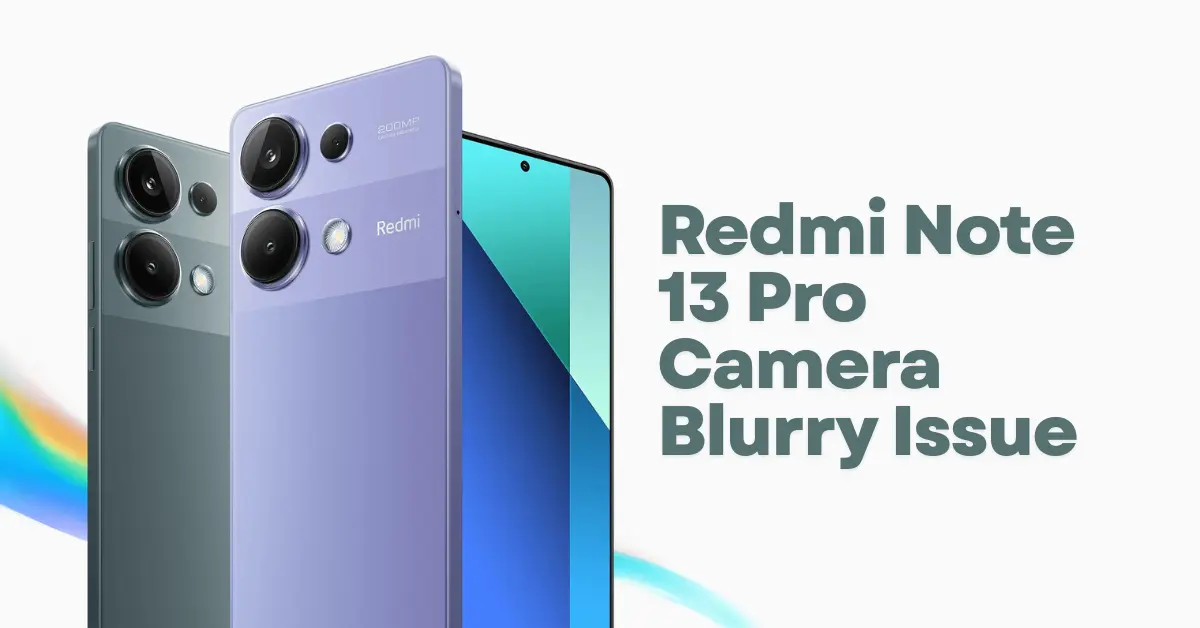
The Redmi Note 13 Pro comes with an impressive camera system, but many users have recently reported a frustrating problem: blurry photos. Whether you’re taking close-ups, portraits, or low-light shots, a sudden loss of sharpness can ruin an otherwise great picture.
If you’re facing this issue, don’t worry—this guide covers all possible causes and proven fixes to get your Redmi Note 13 Pro camera back to crystal-clear performance.
Common Causes of Blurry Photos on Redmi Note 13 Pro
Before jumping to fixes, it helps to understand what might be causing the blur:
- Dirty lens surface
- Software bugs or outdated camera app
- Focus issues or slow shutter
- Shake or hand movement
- Hardware lens misalignment
- System settings affecting image clarity
Let’s go through each fix one-by-one.
1. Clean the Camera Lens Properly
A fingerprint, dust particle, or moisture can easily cause blurriness.
How to clean it:
- Use a soft microfiber cloth.
- Wipe the lens in circular motions.
- Avoid using your shirt or rough fabrics.
- If there’s oil residue, use a drop of lens cleaner or 70% isopropyl alcohol.
Even a tiny smudge can cause out-of-focus images, so always start here.
2. Update the MIUI / HyperOS System
Xiaomi often releases patches for camera issues.
Steps:
- Go to Settings → About Phone → Software Update
- Download & install any available update
- Restart your device
Updates frequently contain camera optimization fixes.
3. Update the Camera App
If you use the default camera app:
- Open Settings → Apps → App Management
- Tap Camera
- Select App details
- Update to the latest version (if available)
If you’re using GCam, ensure the version supports the Note 13 Pro’s sensor configuration.
4. Reset Camera Settings
Sometimes the issue is simply incorrect settings like macro mode, filters, or autofocus adjustments.
Reset steps:
- Open Camera
- Go to Settings
- Scroll down and tap Restore default settings
This resets focus settings, filters, and custom modes.
5. Turn Off Motion Mode or Movie Frame
These modes can sometimes trigger blur if used accidentally.
In the camera interface, check for:
- Motion
- Long Exposure
- Movie Frame
- AI Effects
Turn them off and test again.
6. Enable Focus Peaking (Pro Mode Tip)
To manually check if your lens is focusing properly:
- Open Camera → Pro Mode
- Enable Focus Peaking
- Try adjusting the focus slider
If the highlighted focus area never appears, it may indicate a hardware-level focus issue.
7. Avoid Taking Photos Too Close
The Redmi Note 13 Pro may struggle to focus at very close distances unless macro mode is used.
- Switch to Macro Mode for close shots.
- Maintain at least 10–15 cm distance with the primary lens.
8. Use Tap-to-Focus Before Taking Shots
Often the camera defaults to the wrong focus point.
Try this:
- Tap the subject on your screen
- Wait for the focus box to sharpen
- Take the picture
If tapping doesn’t change anything, autofocus may not be working correctly.
9. Clear Camera App Cache
Corrupted cache can cause focus issues.
Steps:
- Go to Settings → Apps → Camera
- Tap Clear Cache
Do not clear storage unless absolutely necessary.
10. Try Safe Mode (Check for Third-Party App Conflicts)
Sometimes external apps like Snapchat, Instagram, or beauty filters interfere with camera processing.
How to enter Safe Mode:
- Press and hold the Power button
- Long-press Power Off
- Tap Reboot to Safe Mode
Check the camera in Safe Mode.
If the blur disappears, a third-party app is causing the issue.
11. Check for Camera Hardware Damage
If your phone recently fell or hit a hard surface, the camera module might have:
-
Loose OIS module
-
Lens misalignment
-
Internal sensor damage
Symptoms of hardware failure:
- Continuous blur
- Clicking noises while focusing
- Inability to focus at any distance
- “Camera error” popups
If this matches your experience, move to a repair solution.
12. Turn Off HDR or AI Mode Temporarily
Sometimes HDR + AI + megapixel mode overloads the processor, causing slow shutter and blur.
Try switching to:
- Standard Photo mode
- AI off
- HDR off
Then test again.
13. Enable Image Stabilization (EIS)
This helps especially with video and low-light photography.
Go to:
Camera → Settings → Steady Video / Stabilization
Enable if available.
14. Last Resort Factory Reset
If all else fails and the camera was working previously:
- Back up your data
- Go to Settings → Additional Settings → Backup & Reset
- Choose Factory Data Reset
This clears deep software issues affecting the camera.
15. Visit Xiaomi Service Center (For Hardware Defects)
If none of the fixes work, your camera module may be defective.
Common hardware issues in Redmi Note 13 Pro include:
- Stuck OIS motor
- Loose primary sensor
- Lens separation due to heat or drops
If your device is under warranty, repairs are usually free.
You can find support at:
Xiaomi Official Support: https://www.mi.com/global/service
The Redmi Note 13 Pro is capable of taking excellent photos, so blurry images are usually caused by:
- A dirty lens
- Wrong camera settings
- Software bugs
- Low-light shutter blur
- Hardware malfunction (less common)
Following the steps above solves the issue for most users without needing a repair center.