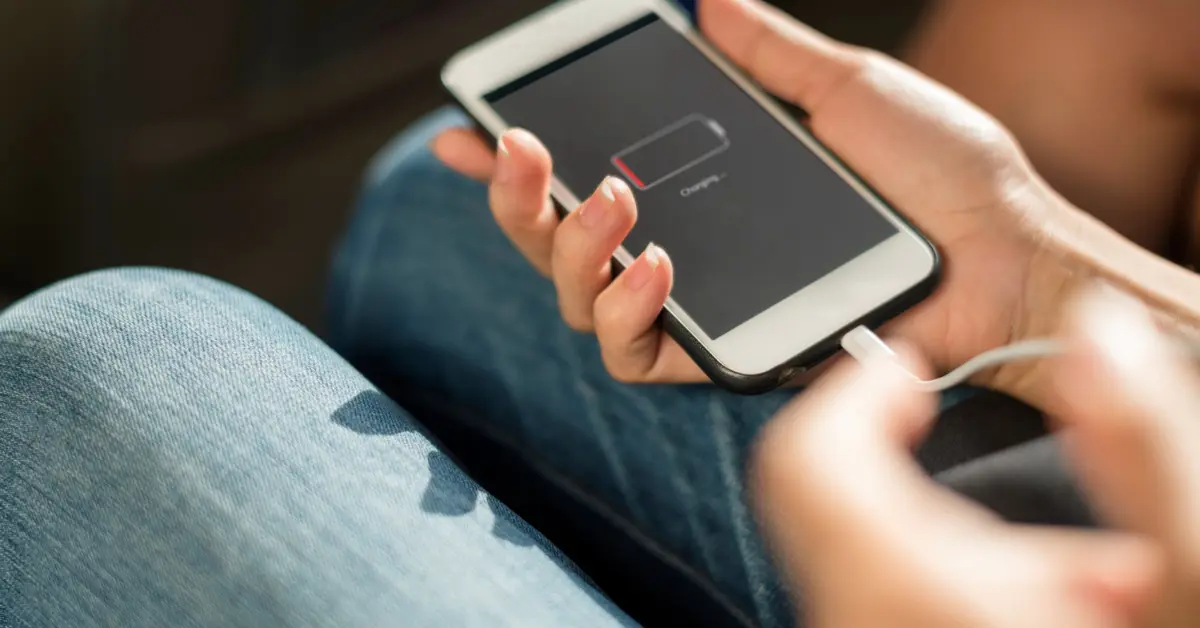
If you’re dealing with iPhone 15 overheating while charging, you’re not the only one. Many users have reported their device becoming unusually hot—sometimes even too hot to touch—especially after system updates or while using fast chargers. Overheating not only affects performance but also reduces long-term battery health.
Here’s a complete, easy-to-follow guide explaining why iPhone 15 overheating happens and how to fix it quickly.
Why Is Your iPhone 15 Overheating While Charging?
Several factors can cause iPhone 15 overheating, and most are related to charging behavior, environment, or software activity. Common causes include:
- Fast charging generating extra heat
- Heavy background apps running
- Using the phone while charging
- iOS bugs after recent updates
- Wireless or MagSafe charging heat output
- Cheap or non-certified charging cables
- Charging in hot environments
- Debris inside the USB-C port
- A degrading battery
Identifying the cause helps apply the right solution.
1. Let the iPhone Cool Down Before Charging Again
The first rule: Unplug immediately if the device feels too hot. Allow it to cool naturally for 5–10 minutes before plugging it back in. Charging a hot battery accelerates wear and may trigger more overheating.
2. Avoid Using the iPhone While Charging
Many cases of iPhone 15 overheating occur because users perform battery-heavy activities while plugged in. Activities to avoid:
- Gaming
- Streaming video
- Navigation apps
- Editing photos or videos
- Large downloads or cloud backups
Let the phone charge undisturbed to prevent overheating.
3. Remove the Phone Case While Charging
Thick or rugged cases trap heat, especially during fast charging or wireless charging. Removing the case allows better airflow and reduces thermal buildup.
4. Use Only Apple-Certified Chargers
Cheap and uncertified adapters often cause unstable power flow, leading to iPhone 15 overheating during charging. Always use:
- Original Apple USB-C chargers
- MFi-certified cables
- Apple MagSafe chargers
Avoid super high-watt chargers unless necessary.
5. Close Background Apps and Restrict Power-Heavy Features
Multiple apps running simultaneously can overload the CPU and increase heat during charging.
To reduce heat:
- Close unused apps
- Disable Background App Refresh
- Turn off Bluetooth, Hotspot, and Location when not needed
- Pause automatic iCloud syncing or backups
This reduces load and prevents overheating.
6. Update to the Latest iOS Version
Overheating is sometimes caused by software bugs. Apple frequently releases updates to improve device thermal stability.
Go to:
Settings → General → Software Update
Install any available updates to reduce iPhone 15 overheating.
7. Charge on a Cool, Flat, Ventilated Surface
Your charging environment matters. Avoid charging on:
- Beds
- Sofas
- Cars in direct sunlight
- Under blankets or pillows
Soft surfaces trap heat. Instead, charge on a flat, cool surface.
8. Clean Your USB-C Port
Dust or lint in the USB-C port increases electrical resistance, generating heat during charging. Clean the port using:
- A soft brush
- Compressed air
Avoid using pins or metal objects to prevent damage.
9. Reduce Wireless Charging Sessions
MagSafe and wireless chargers naturally produce more heat due to energy loss. To minimize iPhone 15 overheating:
- Use Apple-certified wireless chargers
- Ensure proper alignment
- Avoid thick or metal cases
Switch to wired charging if overheating persists.
10. Check Battery Health
A worn or defective battery can heat up quickly during charging.
Check it via:
Settings → Battery → Battery Health & Charging
If battery health is significantly degraded, consider contacting Apple for replacement.
11. Reset All Settings (Safe Fix)
Sometimes overheating is caused by incorrect settings after an update.
Reset without data loss:
Settings → General → Transfer or Reset iPhone → Reset → Reset All Settings
This restores system defaults while keeping apps, photos, and files intact.
When Should You Worry About iPhone 15 Overheating?
Your iPhone may be too hot if:
- It shows a temperature warning
- It automatically shuts down
- It becomes too hot to touch
- It overheats even when idle
These signs indicate potential hardware or battery issues.
When to Contact Apple Support
If none of the solutions fix the iPhone 15 overheating problem, it may be a hardware fault. Contact Apple Support or visit an authorized service center. Possible issues include:
- Faulty battery
- Damaged charging IC
- Defective USB-C port
- Internal thermal management problems
Apple diagnostics can identify and fix the problem safely.
Redmi K90 Champion Edition Battery Test and Charging Speed Review
Conclusion
iPhone 15 overheating while charging is a common issue, but in most cases, it’s easy to resolve. Using certified chargers, reducing background activity, keeping your device cool, and updating iOS will usually solve the problem. Overheating should never be ignored, as it affects battery lifespan and overall performance.
If the issue persists, seek professional help from Apple to prevent long-term damage.