Many Samsung S24 users notice faster battery drain after installing software updates. This can be frustrating, especially if your phone used to last a full day. In this guide, we’ll explore why Samsung S24 battery drain happens and share practical, step-by-step solutions to fix it.
What Causes Samsung S24 Battery Drain After an Update?
Software updates are meant to improve performance and security, but sometimes they can introduce issues that affect battery life. Common reasons include:
- Software glitches: Bugs in the new update can cause abnormal battery use.
- Background processes: Updates may trigger apps or system processes to run more frequently.
- App incompatibility: Some apps might not yet be optimized for the latest software.
- Network issues: Poor connectivity or continuous syncing can increase power consumption.
Knowing the cause helps you apply the right fix efficiently.
How to Check if Your Samsung S24 Battery Is Draining Faster
Before troubleshooting, confirm the problem:
- Battery usage stats: Go to Settings > Battery and Device Care > Battery > Usage to see which apps consume the most power.
- Screen-on time: Long screen usage may indicate apps running in the background.
- High-consumption apps: Identify apps that unexpectedly drain battery and consider updating or uninstalling them.
1. Restart Your Samsung S24
A simple restart often fixes temporary glitches. Restarting clears system cache and stops unnecessary background processes causing battery drain.
2. Update Software and Apps
Keeping your phone and apps updated ensures better performance and battery optimization:
- Go to Settings > Software Update > Download and Install for system updates.
- Update apps through the Google Play Store or Galaxy Store.
Updated apps are less likely to consume excess power.
3. Optimize Battery Settings
Samsung S24 offers features that help preserve battery life:
- Adaptive Battery: Limits battery usage for rarely used apps.
- Power Saving Mode: Reduces performance, background activity, and screen brightness.
- Background Activity Limits: Restrict apps from running in the background unnecessarily.
Activate these in Settings > Battery and Device Care > Battery > More Battery Settings.
4. Manage Problematic Apps
Some apps may misbehave after updates:
- Check battery usage for high-draining apps.
- Force stop, uninstall, or update problematic apps.
- Consider using alternatives if the app continues to drain battery.
5. Turn Off Unnecessary Features
Certain features consume a lot of power, especially when not in use:
- Disable 5G if it’s not needed.
- Turn off Bluetooth and Wi-Fi when idle.
- Disable Always-On Display (Settings > Lock Screen).
- Limit Location services to only essential apps.
6. Clear Cache Partition
Clearing the cache removes temporary system files that might be causing battery inefficiency:
- Turn off your phone.
- Press and hold Volume Up + Power Button until recovery mode appears.
- Select Wipe Cache Partition (no personal data will be lost).
7. Reset All Settings
Resetting all settings restores system defaults without deleting personal data:
- Go to Settings > General Management > Reset > Reset All Settings.
- This can fix conflicts that cause battery drain after updates.
8. Factory Reset (Last Resort)
If battery drain persists despite all efforts:
- Backup all important data.
- Go to Settings > General Management > Reset > Factory Data Reset.
This will fully restore your phone and eliminate software-related battery issues.
Additional Tips to Prevent Battery Drain
- Avoid extreme temperatures: Heat or cold can reduce battery efficiency.
- Use original chargers: Fast or third-party chargers may harm battery health.
- Monitor battery health: Settings > Battery and Device Care > Battery > More Battery Settings.
- Limit background apps: Regularly check apps running in the background and close unnecessary ones.
When to Contact Samsung Support
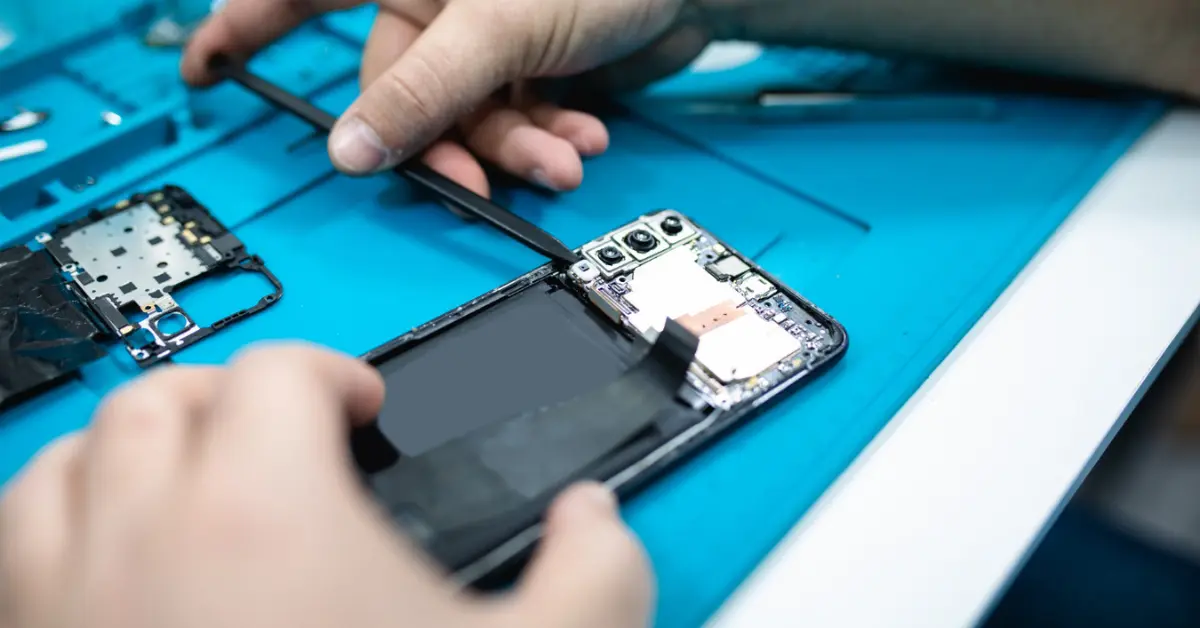
If your battery still drains quickly after all troubleshooting steps, it could indicate a hardware issue. Contact Samsung Support or visit an authorized service center for a battery check or replacement.
Conclusion
Samsung S24 battery drain after an update is common but usually fixable. Simple steps like restarting your phone, updating apps, optimizing settings, and managing features can significantly improve battery life. Regular maintenance and mindful usage will help your Samsung S24 last longer between charges.